
Styling Flask
Learning Objectives
After this lesson, you will be able to:
- Write basic HTML.
- Write basic CSS.
- Style a Flask app.
Customizing Our Flask App
Run your my_website.py. How does it look?
Reminder: http://localhost:5000/
How do we add colors? Styles? Formatting?
We need HTML and CSS.
Pro tip: This is front-end web development!
HTML and CSS:
HTML: Content, Structure, and Presentation
- Paragraphs
- Headings
CSS: Style and Design
- Colors
- Fonts
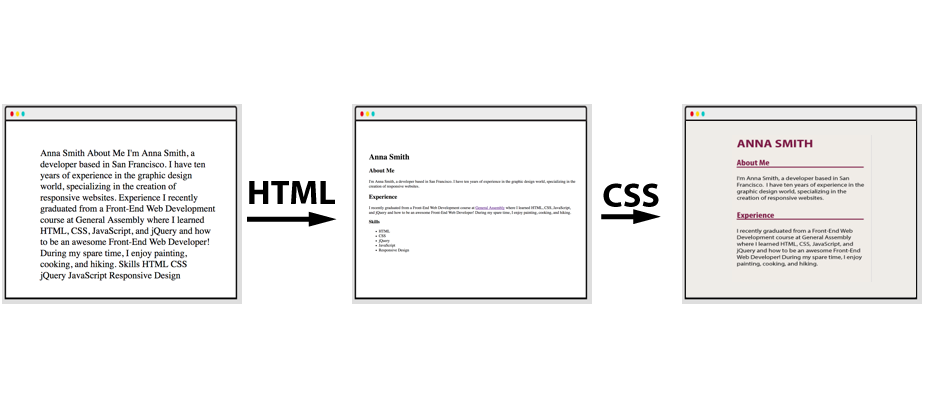
First, HTML
HTML means…
- Hypertext Markup Language
- HTML is not a programming language!
- Adding structure to a webpage. What’s a heading? What’s a paragraph? What’s a list?

HTML Elements
The fundamental building block of HTML is the element.
<p>Here is a paragraph with p tags. The tags won't appear to the user.</p>
(Most) elements consist of:
- An opening tag (
<p>).- Indicates, “Format this content!”
- Defines what TYPE of content it is (e.g., paragraph, header).
- Content (e.g., text, images, video, or other elements).
- What the user sees.
- A closing tag (
</p>).- Indicates, “The content has ended.”
- Has a
/.
- An opening tag (
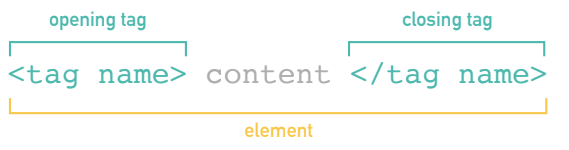
Tags are always in angle brackets.
Types of Tags
Different tags apply different formatting.
- Paragraphs:
- These will be regular-sized text.

- Headings:
- These will be larger and bold text.

Paragraph Tags
These are possibly the most common tags — all websites have paragraphs!
- Used to group related chunks of text.
- Browsers will apply default styling.
- The most universal content tag in HTML.
Paragraph Tags
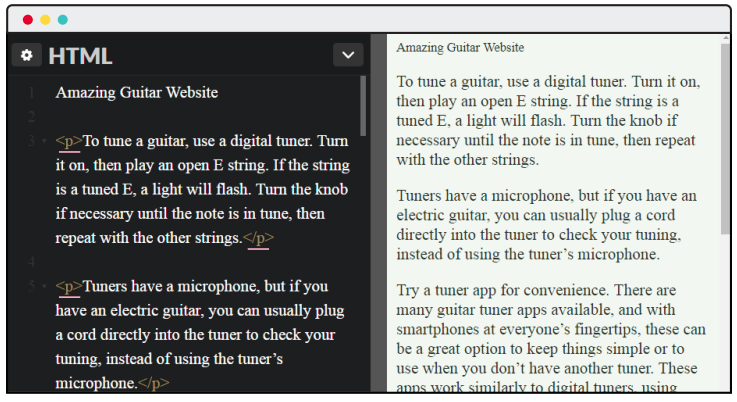
Note: As “Amazing Guitar Website” doesn’t have a p tag, it looks different. The browser doesn’t yet know how to display it.
Heading Tags
Heading Tags
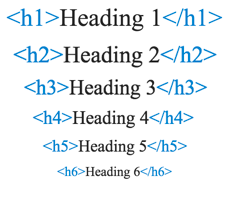
- Used to display text as a title/headline of a webpage or webpage section.
- Tags
<h1>through<h6>. <h1>defines the most important title on the page.- Note that we didn’t do anything — browsers just know headings are bigger!
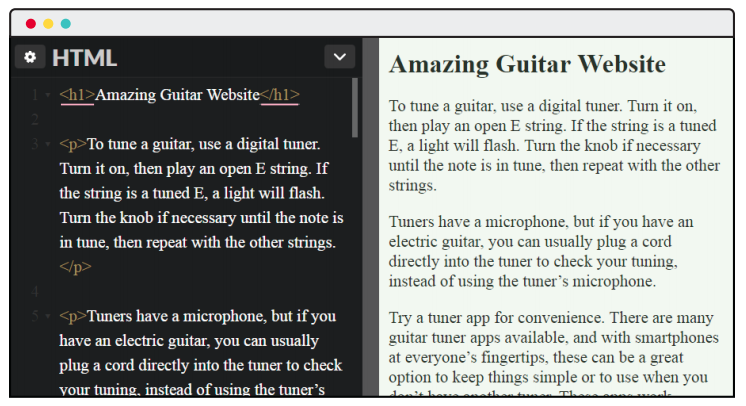
Heading Tag Sizing
What About Lists?
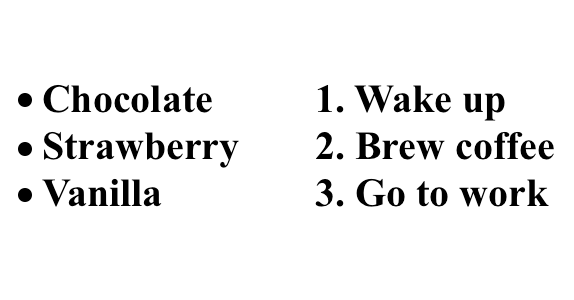
There are two types of lists: - Unordered lists. - Ordered lists (aka, numbered lists).
The List Tag
<ul></ul>defines an unordered list.Used together with list item:
<li></li>.
- Notice the indent — just like Python!
Ordered Lists
<ol></ol>defines an ordered list.List item is the same:
<li></li>.
You Do: Lists
- Set “Skills” to be an
h3. - Create an unordered list.
- Then create an ordered list!
Lists Solution
Quick Review
We’ve talked about HTML tags.
- They add structure to a page.
- Browsers automatically size paragraphs and headings appropriately.
- Lists are automatically given bullets or numbers.
All HTML is formed with tags:
We Do: Defining HTML
- Open any webpage.
- Right click.
- Click “View Page Source.”
HTML Structure: doctype
Short for “document type declaration.”
ALWAYS the first line of your HTML.
Tells the browser we’re using HTML5 (the latest version).
Note: The CodePen did this automatically for us. It did a lot!
HTML Structure: <html>
<html> is the tag for HTML content!
- All HTML should be contained inside
<html></html>. - Represents the root of your HTML document.
Within our <html> tags, we have:
<head></head><body></body>
HTML Structure: <head>
<head>: The first tag inside<html></html>.- Adds additional, behind-the-scenes content.
- Is not displayed, but is machine-parsable.
<!DOCTYPE html>
<html>
  <head>
    < BEHIND THE SCENES HERE! >
    <title>< PAGE TITLE > </title>
    <meta charset="utf-8">
  </head>
  <body>
  </body>
</html>HTML Structure: <body>
<body>: The second tag inside<html></html>.- Follows
<head></head>. - Contains HTML/content that will be displayed to the user.
- All other HTML will be placed here.
- Follows
<!DOCTYPE html>
<html>
  <head>
    <title>Website Title</title>
    <meta charset="utf-8">
  </head>
  <body>
    <h1>ALL HTML CONTENT GOES HERE!</h1>
    <p>Here's a paragraph with the p tag — this will actually get displayed.</p>
    <h4>Put whatever you want the user to see here!</h4>
  </body>
</html>We Do: Create an HTML Doc
- Create a directory called
html_practice. - Create a file called
index.html.
Put this content:
<!DOCTYPE html>
<html>
  <head>
    <title>Website Title</title>
    <meta charset="utf-8">
  </head>
  <body>
    <h1>ALL HTML CONTENT GOES HERE!</h1>
  </body>
</html>
Double click your file to open it in a browser!
You Do: Create a Profile
Using the tags below, create a profile for yourself in your index.html.
Include: Name, About Me, and Hobbies.
Put all your HTML and content in between the <body> and </body> tags.
Common tags you might want to use:
- Paragraph:
<p>paragraph</p> - Heading:
<h1>Welcome!</h1> - Lists:
- Unordered (
<ul>Things I like</ul>) - Ordered (
<ol>1, 2, 3!</ol>) - List items (
<li> </li>)
- Unordered (
- Bonus: Use bold (
<b>bold</b>).
Example Solution
<!DOCTYPE html>
<html>
  <head>
    <title>About Me!</title>
    <meta charset="utf-8">
  </head>
  <body>
    <h1>Welcome!</h1>
    <p><b>I'm Sonyl and welcome to my profile!</b></p>

    <p>Things I Like:</p>
    <ul>
      <li>Animals</li>
      <li>Food</li>
      <li>Sleep</li>
    </ul>

    <p>My Daily Routine:</p>
    <ol>
      <li>Wake up</li>
      <li>Drink coffee</li>
      <li>Write great code!</li>
      <li>Go to sleep</li>
    </ol>
  </body>
</html>
Quick Recap
An HTML file looks like this:
<!DOCTYPE html>
<html>
  <head>
    <title>Website Title</title>
    <meta charset="utf-8">
  </head>
  <body>
    < Everything the user sees goes here. >
  </body>
</html>
This is the file your browser gets for any webpage you visit, like Google.com!
Some Tags Need Attributes: Links
What about… a hyperlink that we want to click and go to another URL?

We need to tell the browser where the hyperlink should go.
<a href="Where does this link go?">Clickable text</a>
<a href="https://google.com">Click here for Google.</a>
We Do: Add a link to Google in your HTML. Reload!
Quick Recap
Some tags need more information: Where is the link going? What is the image? Give the browser whatever it needs to know.
Don’t memorize these!
- There are hundreds of tags.
- You can always:
- Ask a friend.
- Ask me!
- Google “HTML” + what you want to do.
- E.g., “HTML image”
Up next: CSS!
Styling: CSS
Let’s switch gears. We have a structured website.
How do we style it?
CSS
CSS means… - Cascading Style Sheets. - Styling your HTML (e.g., colors, fonts, text sizes).
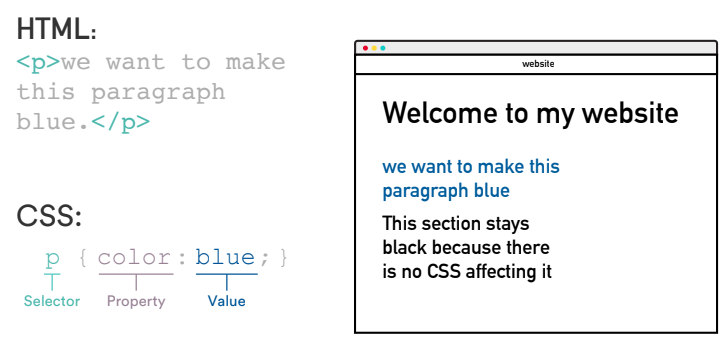
CSS tags match HTML tags.
- This rule turns everything with a paragraph tag (
<p>) blue.
CSS Color Property
You can set text color with color:
Color values can be specified using:
- Color keyword (e.g.,
red). - Hex code (e.g.,
#FF0000).- The common way to set colors!
- Color-pickers online give you the code.
We Do: CSS Color
In the CSS window, add:
CSS: Syntax (CTN)
CSS font size:
- Sets the size of the font.
- We’ll use pixel values (e.g.,
12px,16px).
Fun facts:
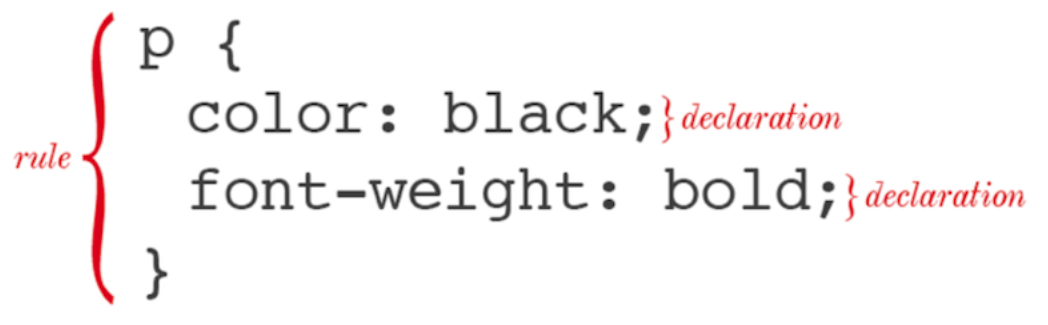
- One selector can have multiple declarations.
- It’s common for each declaration to have its own line.
You Do: CSS
In the CSS window, add:
Quick Review
We can now style elements. We can style any element with a tag!
Adding CSS to HTML
We have CSS. We need to tell the HTML about it! CodePen’s been doing this for us.
- Like
<title>, placed within<head>— it’s something for the HTML to see, but not the user.
<!DOCTYPE html>
    <html>
    <head>
      <title>Super Awesome Website</title>
      <link rel="stylesheet" type="text/css" href="style.css">
    </head>
<body>rel- Specifies the relationship between the current document and the linked document.
type- Specifies the media type of the linked document.
href- Specifies the location of the linked document.
We Do: HTML With CSS
Let’s do this.
- In the directory with your
index.html, createstyles.css. In it, put:
Save and reload!
Quick Recap: HTML and CSS
HTML structures the page; CSS styles it. The CSS tags match the HTML tags.
We put CSS in a separate file and link it to the HTML.
<!DOCTYPE html>
    <html>
    <head>
      <title>Super Awesome Website</title>
      <link rel="stylesheet" type="text/css" href="style.css">
    </head>
    <body>
    <p>Here's a paragraph the user will see — it will be blue!</p>
  </body>
</html>
This is a crash course. It’s a huge topic! We just need the basics.
Up next: How do we do this with Flask?
We Do: Adding HTML and CSS to Flask
Run your my_website.py — how does it look right now? Probably not the best…
Reminder: http://localhost:5000/
from flask import Flask
app = Flask(__name__)

@app.route('/')
def hello_world():
    return 'Hello, World!'

if __name__ == '__main__':
    app.run(debug=True)
Flask automatically makes the page structure for us — the html, head, body, doctype, etc.
Discussion: Where does that “return” go? Where could we put our HTML?
We Do: Add Some HTML
Flask can have in-line styling and HTML right in the return!
- Inside the quotes. The
returnis what goes inside thebodytag of the HTML.
Try this:
- Add italic tags around “Hello”.
- Make the whole string an
h1.
What if we have a LOT of HTML?
We Do: Add a LOT of HTML
Copy this code over:
def hello_world():
    line1 = "<h1><b>Hello</b> World!</h1>"
    line2 = "<p>If music be the food of love, play on!</p>"
    line3 = "<img src='https://media.giphy.com/media/sWrDT2OqxJ3Fu/giphy.gif'>"
    total = line1 + line2 + line3
    return total
Do you think chaining lists is sustainable for a bigger webpage?
Quick Recap:
Flask automatically makes a basic webpage for us. The HTML looks like this:
<!DOCTYPE html>
    <html>
    <head>
      <title>Super Flask Website</title>
    </head>
    <body>
    < What we return in Flask goes here! >
  </body>
</html>
Flask does that automatically — we just need to write the Python code for the body.
Up next: But what if we have a ton of code?
We Do: External HTML File
Create a folder called templates.
- Flask always looks in a
templatesdirectory for HTML files.
Create a file called index.html with some HTML:
<!doctype html>
<html>
<head>
    <meta charset="utf-8">
    <title>Movie Search</title>
</head>
<body>
    <p>Howdy!</p>
</body>
</html>We Do: Tell Flask the HTML Exists!
How do we import an HTML file?
render.template.
At the top of your file, add:
In the .py, change your return to return render_template("index.html").
- Save the lines you have! Just change the return.
Try it!
We Do: Expanding the HTML
Now all our lines can go in the HTML:
<body>
    <h1><b>Hello</b> World!</h1>

    <p>If music be the food of love, play on!</p>

    <img src='https://media.giphy.com/media/sWrDT2OqxJ3Fu/giphy.gif'>
</body>
Try it!
Quick Recap:
Flask automatically generates the webpage HTML and puts your HTML in the body tag — whatever you put in your return statement.
If your HTML gets to be too long to put in just a function without being confusing, you can make the HTML file yourself and tell Flask to load that.
We Do: Adding CSS
templates folder:
- Where Flask looks for HTML files.
static folder:
- Where Flask looks for CSS files.
We Do: Adding CSS
Create a static folder with a file, style.css.
Your directory should look like:
project_folder
│
│   │   my_website.py
│   │
│   │
│   └───templates
│   │    └─── index.html
│   │
│   │
│   └───static
│ └───style.cssWe Do: Background Color
Add this to style.css:
What does it do? Reload your page!
What do you think happened?
We Do: Importing the CSS
We have:
- HTML.
- CSS.
Flask knows about:
- The HTML.
What knows about the CSS?
What should know about the CSS? How can we do that?
We Do: Putting CSS in the HTML
CSS styles HTML docs. We know that!
As we saw earlier, the HTML doc needs to have the CSS link!
In the HTML head, we need to have:
The curly braces {{ }} call Flask!
- “Flask, find
style.cssinstatic.”
We Do: Modify your index.html’s <head>. Reload your page!
Quick Recap
HTML structures pages. We can make a separate HTML file that Flask calls to load, in a templates folder.
CSS styles pages. We can make a separate CSS file in a static folder.
We have to tell the HTML file about the CSS file.
Flask calls the HTML file, which calls the CSS file.
You Do: Customize Your Page
Modify your HTML and CSS files. Here are some ideas:
- Try changing the colors in your CSS file.
- Use
text-aligntocenterthe content. - Use
text-decorationtounderlinetheh1. - Use other HTML tags! Can you make a hyperlink using
<a href="<url>">Click here </a>? - Can you add a list using
<ul><li></li></ul>?
Example HTML
<!doctype html>
<html>
<head>
    <meta charset="utf-8">
    <title>Movie Search</title>
    <link rel="stylesheet" href="{{ url_for('static', filename='style.css')}}">
</head>
<body>
    <h1><b>Hello</b> World!</h1>

    <p><a href="http://www.shakespeare-online.com/plays/twn_1_1.html">If music be the food of love, play on!</a></p>

    <ul>
      <li>Give me excess of it, that, surfeiting,</li>
      <li>The appetite may sicken, and so die.</li>
      <li>That strain again! it had a dying fall:</li>
      <li>O, it came o'er my ear like the sweet south,</li>
      <li>That breathes upon a bank of violets,</li>
      <li>Stealing and giving odour! Enough; no more:</li>
      <li>'Tis not so sweet now as it was before.</li>
      <li>O spirit of love! how quick and fresh art thou,</li>
      <li>That, notwithstanding thy capacity</li>
      <li>Receiveth as the sea, nought enters there,</li>
      <li>Of what validity and pitch soe'er,</li>
      <li>But falls into abatement and low price,</li>
      <li>Even in a minute: so full of shapes is fancy</li>
      <li>That it alone is high fantastical.</li>
    </ul>

    <img src='https://media.giphy.com/media/sWrDT2OqxJ3Fu/giphy.gif'>
</body>
</html>
Example CSS
body {
  background: #FEDCBA;
  font-family: "Times New Roman", serif.
}

h1 {
  color: #012345;
  text-decoration: underline;
  text-align: center;
}
Summary
- HTML:
- Structures pages with headings, paragraphs, lists, etc.
- CSS:
- Styles pages! E.g., colors, bold, underline, font size.
- Adding HTML and CSS to Flask:
- Use the
templateand thestaticfolders.
- Use the