
Python Basics: Variables and Local Python Files
Overview
So, you’ve just installed Python! Let’s put your skills to the test!
You will practice these programming concepts we’ve covered in class:
- Declaring and using variables
- Using mathematical operators
- Running local
.pyfiles from your terminal
Deliverables
For the challenges below, you will create a new .py file and write code to solve the problem. In this case, you will create solution.py for your solution code to the problem. Run the file from the command line to check your work. Detailed directions are given below
Reminder: On your laptop, you can run the file from your command line with the following command:
Hint: Make sure you are printing something out with the print statement! Otherwise, you won’t see any output from running your program!
Requirements:
- By the end of this, you should have a
.pyfile for the solution - We know you’re just starting out, so there is just one challenge problem!
Problem: Decoding R2D2
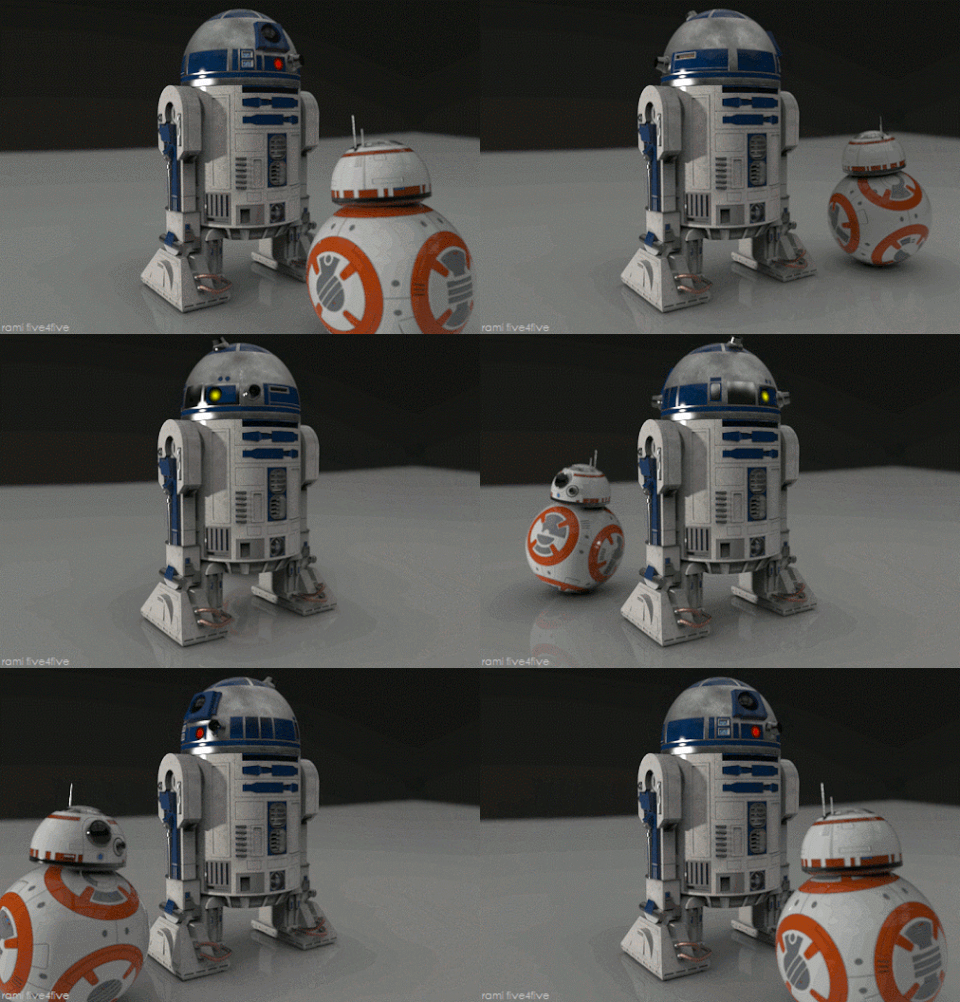
You have a robot who communicates in a series of beeps and boops. You usually get the gist of what he means, but just once it would be nice to know what’s really on his mind! You’ve noticed a pattern in the beeps and boops, and it seems like the number of beeps and boops correspond to specific letters.
Example Code
Problem: Decoding R2D2
You got a result of 8. Now, look that up in the corresponding key-value chart:
| Code | Letter | Code | Letter |
|---|---|---|---|
| 1 | A | 14 | N |
| 2 | B | 15 | O |
| 3 | C | 16 | P |
| 4 | D | 17 | Q |
| 5 | E | 18 | R |
| 6 | F | 19 | S |
| 7 | G | 20 | T |
| 8 | H | 21 | U |
| 9 | I | 22 | V |
| 10 | J | 23 | W |
| 11 | K | 24 | X |
| 12 | L | 25 | Y |
| 13 | M | 26 | Z |
Problem: Decoding R2D2
So, according to the chart, the first letter is H! It’s your job to figure out the rest of the message! Here is the full list of inputs you’ve got written down.
2 beeps, 6 boops
0 beeps, 5 boops
9 beeps, 3 boops
4 beeps, 8 boops
10 beeps, 5 boops
BOP! (pretty sure this is a space!)
11 beeps, 12 boops
5 beeps, 5 boops
1 beep, 17 boops
5 beeps, 7 boops
4 beeps, 0 boops
Problem: Decoding R2D2
In a separate file, print out the numerical total for each beep-boop combo as we did above. In a comment, write the letter that the number corresponds to.
Example Code
Problem: Decoding R2D2
Expected Output
8
5
12
12
15
23
10
18
12
4
Problem: Decoding R2D2
Run it!
Create a new file called
solution.py.Open
solution.pyinAtom.Write your code - solve the problem! Remember to hit
save!Open your Terminal.
Protip: Consult the class notes if you have forgotten how to do this!
- Navigate to the correct location in your file system
Protip: You may need to use the
cdcommand to navigate to the location you have savedsolution.pyat.cd ..navigates to the parent folder of the one you’re currently in.
Problem: Decoding R2D2
- Type the following command:
Mac/Linux
Windows
- Until you get the expected output, you can make changes to your code and run it again to see if you have the answer. Repeat as needed!
Yay! All done!
Now, if you want to know a little more about why that particular message was chosen, read up here!