
You can not select more than 25 topics
Topics must start with a letter or number, can include dashes ('-') and can be up to 35 characters long.
481 lines
16 KiB
481 lines
16 KiB
# SVG
|
|
|
|
This lesson covers how to create various SVG elements, the foundation of D3.js. In it we will cover the following topics
|
|
|
|
1. Base tags
|
|
1. Basic Elements
|
|
1. Positioning
|
|
1. Styling
|
|
1. Important SVG elements
|
|
|
|
## Base tag
|
|
|
|
When viewing SVG graphics in a browser, it's important to embed and `<svg>` tag inside a basic HTML page. Let's create an `index.html` file and add the following to it:
|
|
|
|
```html
|
|
<!DOCTYPE html>
|
|
<html lang="en" dir="ltr">
|
|
<head>
|
|
</head>
|
|
<body>
|
|
<svg></svg>
|
|
</body>
|
|
</html>
|
|
```
|
|
|
|
Now start a web browser and open that file (usually File->Open File). For this book, it is recommended the reader use Google Chrome, but in development and production any browser will do. If we inspect our HTML in the Elements tab of Chrome's dev tools (View->Developer->Developer Tools), we'll see the following:
|
|
|
|

|
|
|
|
## Basic elements
|
|
|
|
We can draw elements in our `<svg>` element by adding a variety of predefined tags as child elements of the `<svg>`. This is just like in HTML where we add `<div>`, `<a>`, and `<img>` tags inside the `<body>` tag. There are many tags like `<circle>`, `<rect>`, and `<line>` that we'll explore in a bit. Here's just one example:
|
|
|
|
```html
|
|
<!DOCTYPE html>
|
|
<html lang="en" dir="ltr">
|
|
<head>
|
|
</head>
|
|
<body>
|
|
<svg>
|
|
<circle></circle>
|
|
</svg>
|
|
</body>
|
|
</html>
|
|
```
|
|
|
|
Note that we can't see the circle because it doesn't have a radius, as shown in the below screenshot:
|
|
|
|

|
|
|
|
We'll talk about this more later, but for now, if we want to see the circle, we can add a special attribute that all `<circle>` elements take:
|
|
|
|
```html
|
|
<circle r=50></circle>
|
|
```
|
|
|
|
This tells the browser to give the circle a radius of 50px:
|
|
|
|

|
|
|
|
At the moment though, we only see the bottom right quarter of the `<circle>`. This is because the center of the `<circle>` is being drawn at the very upper left corner of the `<svg>`, and the rest of it is being clipped outside the `<svg>`. We can change this by changing the position of the circle, which we'll do next.
|
|
|
|
## Positioning an Element
|
|
|
|
The `<svg>` tag is an inline element, like an image (as opposed to a block element like a `<div>`). Elements within the `<svg>` are positioned similar to photoshop, with a set of coordinates which follow the form `(x,y)`. An example of this could be `(10,15)` which translates to `x=10` and `y=15`. This is different from HTML, where elements are laid out relative to each other. Some important things to keep in mind:
|
|
|
|
- the point `(0,0)` is the top left of the `<svg>` element
|
|
- as y values increase, the point moves vertically down the `<svg>` element
|
|
- don't confuse this with a typical coordinate system that has `(0,0)` at the **bottom** left with a point moving up as y increases in value
|
|
|
|

|
|
|
|
- we can use negative x/y values
|
|
- -x moves left
|
|
- -y moves up
|
|
|
|
Let's adjust the position of our circle in our previous section by adjusting `cx` and `cy` values (the x and y values for the center of the element):
|
|
|
|
```html
|
|
<!DOCTYPE html>
|
|
<html lang="en" dir="ltr">
|
|
<head>
|
|
</head>
|
|
<body>
|
|
<svg>
|
|
<circle r=50 cx=50 cy=50></circle>
|
|
</svg>
|
|
</body>
|
|
</html>
|
|
```
|
|
|
|
Now we see the full circle:
|
|
|
|

|
|
|
|
## Styling Elements
|
|
|
|
The appearance of any tag inside an `<svg>` can be styled with the following attributes (below are the attributes with example values):
|
|
|
|
- `fill=red` or `fill=#ff0000` will alter the color of the shape
|
|
- `stroke=red` or `stroke=#ff0000` will alter stroke color. Stroke is a line that surrounds each element
|
|
- `stroke-width=4` will adjust the width of the stroke
|
|
- `fill-opacity=0.5` will adjust the transparency of the fill color
|
|
- `stroke-opacity=0.5` will adjust the transparency of the stroke color
|
|
- `transform = "translate(2,3)"` will translate the element by the given x,y values
|
|
- `transform = "scale(2.1)"` will scale the size of the element by the given proportion (e.g. 2.1 times a s big)
|
|
- `transform = "rotate(45)"` will rotate the element by the given number of degrees
|
|
|
|
Let's style the circle we positioned previously:
|
|
|
|
```html
|
|
<circle r=50 cx=50 cy=50 fill=red stroke=blue stroke-width=5></circle>
|
|
```
|
|
|
|
Now we get this:
|
|
|
|

|
|
|
|
Note that the stroke in the image above is getting clipped. That's because the stroke is create outside the element. If we wanted to see the full stroke, we can resize the circle:
|
|
|
|
```html
|
|
<circle r=45 cx=50 cy=50 fill=red stroke=blue stroke-width=5></circle>
|
|
```
|
|
|
|
Now we get:
|
|
|
|

|
|
|
|
|
|
Styling can also be done with CSS. The following steps will tell you how to style your `<svg>` element with CSS:
|
|
|
|
1. Create an external `app.css` file in the same folder as your `index.html` file with the following contents:
|
|
|
|
```css
|
|
circle {
|
|
fill:red;
|
|
stroke:blue;
|
|
stroke-width:3;
|
|
fill-opacity:0.5;
|
|
stroke-opacity:0.1;
|
|
transform:rotate(45deg) scale(0.4) translate(155px, 1px);
|
|
r:50px;
|
|
}
|
|
```
|
|
|
|
1. Link the file in the `<head>` tag of `index.html`:
|
|
|
|
```html
|
|
<head>
|
|
<link rel="stylesheet" href="app.css">
|
|
</head>
|
|
```
|
|
|
|
1. Lastly, remove our previous inline styling that we had on our `<circle>` tag:
|
|
|
|
```html
|
|
<circle></circle>
|
|
```
|
|
|
|
Now we get this:
|
|
|
|

|
|
|
|
Note that I've hovered over the element in the dev tools to show that the element has been rotated 45 degrees. That's what the blue box is.
|
|
|
|
## Important SVG elements
|
|
|
|
To demo each element, we'll use the following code as a starting point and then add each element inside the `<svg>` tag:
|
|
|
|
```html
|
|
<!DOCTYPE html>
|
|
<html lang="en" dir="ltr">
|
|
<head>
|
|
</head>
|
|
<body>
|
|
<svg width=800 height=600>
|
|
</svg>
|
|
</body>
|
|
</html>
|
|
```
|
|
|
|
Let us now move on to each element. Note that you can write each tag in the form `<element></element>` as we did with `<circle></circle>` previously, or the self-closing form `<element/>`, which you will see next with `<circle/>`.
|
|
|
|
### Circle
|
|
|
|
Circles have the following attributes:
|
|
|
|
- `r` radius
|
|
- `cx` x position
|
|
- `cy` y position
|
|
|
|
```xml
|
|
<circle r="50" cx="200" cy="300"/>
|
|
```
|
|
|
|

|
|
|
|
### Line
|
|
|
|
Lines have the following attributes:
|
|
|
|
- `x1` starting x position
|
|
- `y1` starting y position
|
|
- `x2` ending x position
|
|
- `y2` ending y position
|
|
|
|
```xml
|
|
<line x1="0" y1="0" x2="100" y2="100"/> <!-- this element won't be visible because it doesn't have a stroke -->
|
|
<line x1="0" y1="0" x2="100" y2="100" stroke="purple"/>
|
|
```
|
|
|
|

|
|
|
|
### Rectangle
|
|
|
|
Rectangles have the following attributes:
|
|
|
|
- `x` x position of top left
|
|
- `y` y position of top left
|
|
- `width` width
|
|
- `height` height
|
|
|
|
```xml
|
|
<rect x="50" y="20" width="150" height="150"/>
|
|
```
|
|
|
|

|
|
|
|
### Ellipse
|
|
|
|
An ellipse has the following attributes:
|
|
|
|
- `cx` x position
|
|
- `cy` y position
|
|
- `rx` x radius
|
|
- `ry` y radius
|
|
|
|
```xml
|
|
<ellipse cx="200" cy="80" rx="100" ry="50"/>
|
|
```
|
|
|
|

|
|
|
|
### Polygon
|
|
|
|
Polygons have the following attributes:
|
|
|
|
- `points` set of coordinate pairs
|
|
- each pair is of the form `x,y`
|
|
|
|
```xml
|
|
<polygon points="200,10 250,190 160,210" />
|
|
```
|
|
|
|

|
|
|
|
### Polyline
|
|
|
|
Polyline is a series of connected lines. It can have a fill like a polygon, but won't automatically rejoin itself
|
|
|
|
```xml
|
|
<polyline points="20,20 40,25 60,40 80,120 120,140 200,180" stroke="blue" fill="none"/>
|
|
```
|
|
|
|

|
|
|
|
### Text
|
|
|
|
The content of the tag is the text to be displayed. It has the following attributes:
|
|
|
|
- `x` x position of top left corner of the element
|
|
- `y` y position of top left corner of the element
|
|
|
|
```xml
|
|
<text x="0" y="15">I love SVG!</text>
|
|
```
|
|
|
|
You can use font-family and font-size CSS styling on this element
|
|
|
|
### Group
|
|
|
|
- This element has no special attributes, so use transform on it.
|
|
- You can put multiple elements inside it and all of its positioning and styling will apply to its children
|
|
- It's good for moving many elements together as one
|
|
|
|
```xml
|
|
<g transform = "translate(20,30) rotate(45) scale(0.5)"></g>
|
|
```
|
|
|
|
### Bezier Curves
|
|
|
|
What if we want to draw complex organic shapes? To do this, we'll need to use paths. First, though, to understand paths, you have to first understand bezier curves.
|
|
|
|
#### Cubic Bezier Curves
|
|
|
|
There are two types of Bezier curves:
|
|
|
|
- [Bezier curves](http://blogs.sitepointstatic.com/examples/tech/svg-curves/cubic-curve.html)
|
|
- [Quadratic Bezier curves](http://math.hws.edu/eck/cs424/notes2013/canvas/bezier.html)
|
|
|
|
Each curve is made up of four points:
|
|
|
|
- start point
|
|
- end point
|
|
- starting control point
|
|
- ending control point
|
|
|
|
The start/end point are where the curve starts and ends. The control points define the shape of the curve. It's easiest to conceptualize if with the following diagram:
|
|
|
|

|
|
|
|
As we manipulate the control points, we can see how the shape of the curve is affected:
|
|
|
|

|
|
|
|
You can even join multiple bezier curves together:
|
|
|
|

|
|
|
|
#### Smooth Cubic Bezier Curves
|
|
|
|
Smooth Cubic Bezier curves are just a way to simplify some cubic bezier curves when they're joined together. Take a look at the two control points in the red square below:
|
|
|
|

|
|
|
|
The point in the lower left of the square is the end control point of the first curve. The point in the upper right of the square is start control point of the second curve.
|
|
|
|
Note that the two points are reflections of each other around the central black dot which is the end point of the first curve and the start point of the second curve. The two points are exactly 180 degrees in opposite directions, and they have the same distance from that central point.
|
|
|
|
In scenarios like this, where the start control point of one curve is a reflection of the end control point of the previous curve, we can skip stating the start control point of the second curve. Instead, we let the browser calculate it, based on the end control point of the first curve.
|
|
|
|

|
|
|
|
We can also omit the start point since the browser knows it will be the same as the end point of the previous curve. In summary, to define that second curve, we only need two points:
|
|
|
|
- the end point
|
|
- the end control point
|
|
|
|
#### Quadratic Bezier Curve
|
|
|
|
Another situation where we can simplify defining a bezier curve is where the start control point and end control point are the same
|
|
|
|

|
|
|
|
Here we can define the curve with just three points:
|
|
|
|
- the start point
|
|
- the end point
|
|
- one single control point which acts as both start control point and end control point
|
|
|
|
#### Smooth Quadratic Bezier Curve
|
|
|
|
The final situation where we can simplify defining a bezier curve is where we have a quadratic bezier curve (one single control point) that is a reflection of the end control point of a previous curve:
|
|
|
|

|
|
|
|
In this situation, the browser knows the start point of the curve (the end point of the previous curve), and it can calculate the single control point needed (since it is a quadratic bezier curve) based on the end control point of the previous curve. This is a smooth quadratic bezier curve, and you only need one point to define it:
|
|
|
|
- the end point
|
|
|
|
### Drawing a path
|
|
|
|
Now that we understand bezier curves, we can use them in our SVGs with `<path>` elements
|
|
|
|
[Documentation](https://developer.mozilla.org/en-US/docs/Web/SVG/Tutorial/Paths)
|
|
|
|
These tags take a `d` attribute which stands for a set of drawing commands. The value of this attribute is any combination of the below:
|
|
|
|
- M = moveto: move the drawing point to the given coordinates
|
|
- M x y
|
|
- L = lineto: draw a line from the previous point in the `d` command to the point given
|
|
- L x y
|
|
- C = curveto: draw a curve from the previous point in the `d` command to the point given with the given control points
|
|
- C x1 y1, x2 y2, x y
|
|
- first pair is first control point
|
|
- second pair is second control point
|
|
- last pair is final ending point of curve
|
|
- S = smooth curveto
|
|
- S x2 y2, x y
|
|
- follows another curve
|
|
- uses reflection of x2 y2 of previous S or C command for x1 y1
|
|
- Q = quadratic Bézier curve
|
|
- Q x1 y1, x y
|
|
- uses one control point for start and end controls (x1, y1)
|
|
- T = smooth quadratic Bézier curveto
|
|
- T x y
|
|
- follows another curve
|
|
- uses reflection of previous quadratic curve's control point as its control point
|
|
- Z = closepath: draw a line from the previous point in the `d` command to the first point in the `d` command
|
|
|
|
**Note:** All of the commands above can also be expressed with lower case letters. Capital letters means absolutely positioned, lower case letters mean the all points are expressed relative to the previous point in the `d` command.
|
|
|
|
```xml
|
|
<path d="M150 0 L75 200 L225 200 Z" stroke="black" fill="transparent"/>
|
|
```
|
|
|
|

|
|
|
|
```xml
|
|
<path d="M0 70 C 0 120, 50 120, 50 70 S 100 20, 100 70" stroke="black" fill="transparent"/>
|
|
```
|
|
|
|

|
|
|
|
```xml
|
|
<path d="M0 100 Q 50 50, 100 100 T 200 100 Z" stroke="black" fill="transparent"/>
|
|
```
|
|
|
|

|
|
|
|
#### Arcs
|
|
|
|
An arc is a command that you can add to a path that will draw part of an ellipse. To do this, we first begin with only two points:
|
|
|
|

|
|
|
|
For any two points, there are only two ellipses with the same width/height and rotation that contain both points. In the image above, try to imagine moving the ellipses around without rotating or scaling them. As soon as you do, they loose contact with at least one of the two given points. One point might be on the ellipse, but the other won't be.
|
|
|
|
We can use this information to draw any of the four colored arcs shown in the image above.
|
|
|
|
Make the following code part of the `d` attribute's value on a `<path>` element.
|
|
|
|
```
|
|
A rx ry x-axis-rotation large-arc-flag sweep-flag x y
|
|
```
|
|
|
|
- `A` - create an arc draw command
|
|
- `rx` - x radius of both ellipses (in px)
|
|
- `ry` - y radius of both ellipses (in px)
|
|
- `x-axis-rotation` - rotate both ellipses a certain number of degrees
|
|
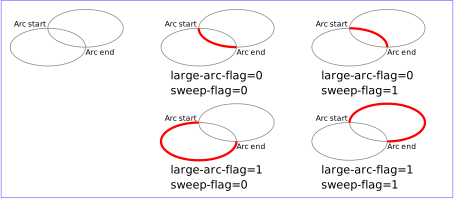
- `large-arc-flag` - whether or not to travel along the arc that contains more than 180 degrees (1 to do so, 0 to not do so)
|
|
- `sweep-flag` - whether or not to move along the arc that goes clock-wise (1 to do so, 0 to not do so)
|
|
- `x` - destination x value (in px)
|
|
- `y` - destination y value (in px)
|
|
|
|
The `large-arc-flag` determines whether to make an arc that is greater than 180 degrees. Here's an example without it (note, the red shows the arc drawn, while the green arcs are other possible arcs that could be drawn using a combination of `large-arc-flag` and `sweep-flag`):
|
|
|
|

|
|
|
|
Note, it chose one of the two smaller arcs. Here's an example with the `large-arc-flag` set:
|
|
|
|

|
|
|
|
Note, it chose on of the two larger arcs.
|
|
|
|
In the previous example, for both situations where the `large-arc-flag` was set or not set, there was one other arc that could have been taken. To determine which of those two arcs to take, we use the `sweep-flag`, which determines whether to travel clock-wise or not from starting point to ending point. Here's an example with the `large-arc-flag` set, but without the `sweep-flag` set:
|
|
|
|

|
|
|
|
Note we move in a counter clock-wise motion from start to end (left to right). If we set the `sweep-flag`, we travel in a clock-wise motion:
|
|
|
|

|
|
|
|
Here are all the possible combinations for `sweep-flag` and `large-arc-flag`:
|
|
|
|
|
|
|
|
Here's example code for a `path` that uses an arc in its `d` attribute:
|
|
|
|
```html
|
|
<path d="M10 10 A 50 50 0 0 0 50 10" stroke="black" fill="transparent"/>
|
|
```
|
|
|
|
Here's what it looks like:
|
|
|
|

|
|
|
|
Play with the different kinds of arc values here: http://codepen.io/lingtalfi/pen/yaLWJG
|
|
|
|
### Documentation
|
|
|
|
https://developer.mozilla.org/en-US/docs/Web/SVG/Element
|
|
|
|
## Conclusion
|
|
|
|
Now that we've covered the basics of SVG, we're ready to continue on to learn how D3 can be used to modify these elements.
|