
You can not select more than 25 topics
Topics must start with a letter or number, can include dashes ('-') and can be up to 35 characters long.
957 lines
26 KiB
957 lines
26 KiB
<!--
|
|
---
|
|
title: Control Flow
|
|
type: lesson
|
|
duration: "1:10"
|
|
creator: Sonyl Nagale adapted from Susi Remondi
|
|
Private gist location: xxxxxx
|
|
Presentation URL: xxxxx
|
|
---
|
|
-->
|
|
|
|
##  {.separator}
|
|
|
|
<h1>Python Programming: Conditionals</h1>
|
|
|
|
|
|
<!--
|
|
|
|
## Overview
|
|
This lesson introduces students to the concept of control flow — Booleans (including "truthy" and "falsey"), comparison operators, and `if`/`elif`/`else`.
|
|
|
|
## Learning Objectives
|
|
In this lesson, students will:
|
|
- Use comparison and equality operators to evaluate and compare statements.
|
|
- Use `if`/`elif`/`else` conditionals to control program flow.
|
|
|
|
## Duration
|
|
60 minutes
|
|
|
|
## Suggested Agenda
|
|
|
|
| Time | Activity |
|
|
| --- | --- |
|
|
| 0:00 - 0:05 | Welcome |
|
|
| 0:07 - 0:25 | Booleans and Logical Operators |
|
|
| 0:25 - 0:47 | `if`, `else`, and `elif` |
|
|
| 0:47 - 0:57 | Exercises |
|
|
| 0:57 - 0:60 | Summary |
|
|
|
|
## Before Class: Preparation
|
|
- Modify the slides and exercises in this file as you see fit.
|
|
|
|
## In Class: Materials
|
|
- Projector
|
|
- Internet connection
|
|
- Python 3
|
|
|
|
## Differentiation and Extensions
|
|
- If students are excelling, give them more complex exercises and examples — chain comparisons inside `if` statements and make use of `Truthy`/`Falsey`.
|
|
- If students are struggling, continuously recap the real-world comparison (e.g., a temperature range or comparing numbers), and once they grasp that, more slowly recap each individual concept. Start with the variables and an easier comparison, then build up. You can always add more simple demos, code-alongs, and exercises.
|
|
- Feel free to come up with more exercises at the end (and throughout)! If there is extra time, write more exercises on the board (or bring up sample code) for students to complete.
|
|
|
|
-->
|
|
|
|
---
|
|
|
|
## Learning Objectives
|
|
*After this lesson, you will be able to:*
|
|
|
|
- Use comparison and equality operators to evaluate and compare statements.
|
|
- Use `if`/`elif`/`else` conditionals to control program flow.
|
|
|
|
---
|
|
|
|
## Discussion: What Do You Notice?
|
|
|
|
|
|
Consider the following pseudocode for "French toast à la GA."
|
|
|
|
```
|
|
1) Dip the bread in eggs.
|
|
2) Cook the bread for 3 minutes on each side.
|
|
```
|
|
|
|
Now, consider this:
|
|
|
|
```
|
|
1) Dip the bread in eggs.
|
|
2) If the bread is thicker, dip the bread again until it's soaked through.
|
|
3) Cook the bread for 3 minutes.
|
|
4) Check if the bread is brown on the bottom. If not, keep cooking the bread.
|
|
5) Flip the bread, and repeat steps 3 and 4.
|
|
```
|
|
|
|
What do you notice?
|
|
|
|
<aside class="notes">
|
|
|
|
**Teaching Tips:**
|
|
|
|
- Give the class a few minutes to think about it.
|
|
- If French toast isn't your thing, feel free to choose another real-life example. Make sure it has an "if/or" comparison in it — some decision that the program needs to make.
|
|
|
|
**Talking Points:**
|
|
|
|
- Have you ever seen a recipe require a decision?
|
|
- Call out the **repeat**, the **if**, and the **until**.
|
|
- This is **control flow**: changing what the program does based on a decision.
|
|
|
|
</aside>
|
|
|
|
---
|
|
|
|
## Saying "Yes" or "No"
|
|
|
|
```
|
|
- **If** the bread is thicker…
|
|
- **If** the bread is brown…
|
|
```
|
|
|
|
Goal: Programs need to make choices.
|
|
|
|
To do that, programs need to be able to say, "Is this bread thick? Yes or no?"
|
|
|
|
Question: How does a computer say "yes" or "no"?
|
|
|
|
<aside class="notes">
|
|
|
|
**Teaching Tips:**
|
|
|
|
- Make it clear that the goal is that the computer does one thing depending on if the question's answer is yes or no, so first we have to teach the computer to say yes and no.
|
|
|
|
</aside>
|
|
|
|
---
|
|
|
|
## Boolean Values: The Foundation of Programming
|
|
|
|
"Yes" in computer is `True`.
|
|
"No" in computer is `False`.
|
|
|
|
This is the case in every programming language — it's specific to computers themselves.
|
|
|
|
These are called **Boolean values**.
|
|
|
|
- Is the bread sliced?
|
|
- `True`.
|
|
- Is the bread brown?
|
|
- `False`.
|
|
- Is 2 larger than 6?
|
|
- `False`.
|
|
- Is 6 larger than 2?
|
|
- `True`.
|
|
|
|
<aside class="notes">
|
|
|
|
**Talking Points:**
|
|
|
|
- First, it's important to understand that the result of comparing two values is always either the value `True` or the value `False`.
|
|
- These are called **Boolean values** and they are the basis for all decision-making in programming.
|
|
- Comparison operators compare two values with each other and return either `True` or `False`.
|
|
|
|
</aside>
|
|
|
|
---
|
|
|
|
## Comparison and Logic in Programming
|
|
|
|
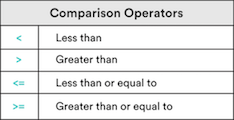
Now we can say "yes" or "no," but how do we ask the question?
|
|
|
|
The first way is with comparison operators.
|
|
|
|
How does a computer decide `True` or `False`?
|
|
|
|
|
|
|
|
|
|
<aside class="notes">
|
|
|
|
**Talking Points:**
|
|
|
|
- Now that we can have a computer say "yes" or "no," we can bring in comparisons and logic. Comparison operators take two variables and contrast them. Mostly, we will be comparing strings and numbers.
|
|
- Python also allows us to compare some more complex data types, which we will learn about soon.
|
|
- Can you think of any use cases for comparison? What programs might need this?
|
|
|
|
</aside>
|
|
|
|
---
|
|
|
|
## Comparison Types Practice
|
|
|
|
|
|
Check out these comparison operators. Why do you think the last one is `False`?
|
|
|
|
<iframe height="400px" width="100%" src="https://repl.it/@GAcoding/python-pt-comparison-operators?lite=true" scrolling="no" frameborder="no" allowtransparency="true" allowfullscreen="true" sandbox="allow-forms allow-pointer-lock allow-popups allow-same-origin allow-scripts allow-modals"></iframe>
|
|
<aside class="notes">
|
|
|
|
**Talking Points:**
|
|
|
|
- Why is that last one false? Because `d` occurs after `a` in the character set.
|
|
- To a computer, characters go `a`, `b`, `c`, `d`… Because `d` is after `a` in a computer's order, `a` < `d`. Therefore, this string comparison will evaluate to `False`.
|
|
|
|
**Repl.it note:** This repl.it contains the following code:
|
|
|
|
`print("3 < 5 is...", (3 < 5))`
|
|
|
|
`print("13 >= 13 is....", (13 >= 13))`
|
|
|
|
`print("50 > 100 is...", (50 > 100))`
|
|
|
|
`print("'d' < 'a' is...", ("d" < "a"))`
|
|
</aside>
|
|
|
|
|
|
---
|
|
|
|
## Equality Operators: Equality (`==`)
|
|
|
|
- Accept any two types of data as inputs.
|
|
- Will only evaluate to `True` if both sides are completely identical in *data type and value*.
|
|
|
|
<iframe height="400px" width="100%" src="https://repl.it/@GAcoding/python-pt-comparison-equality?lite=true" scrolling="no" frameborder="no" allowtransparency="true" allowfullscreen="true" sandbox="allow-forms allow-pointer-lock allow-popups allow-same-origin allow-scripts allow-modals"></iframe>
|
|
|
|
<aside class="notes">
|
|
|
|
**Teaching Tips**:
|
|
|
|
- Spend just a minute on this slide! The repl.it is there for student to run and see, not as the basis for any exercises. It's especially important to point out strings versus numbers.
|
|
- Make sure students understand types — strings versus numbers, for example. `"7"` compared to `7` can be tough.
|
|
|
|
**Talking Points**:
|
|
|
|
- Now, let's take a look at equality operators.
|
|
- Equality operators check to see whether or not two values are the same as, or equal to, each other.
|
|
- This operator will accept any two types of data as inputs and evaluate to a Boolean value (`True` or `False`).
|
|
- It will only evaluate to `True` if both sides are completely identical in data type and value (i.e., a string and a number will never be equal because they are different data types.)
|
|
- For example, `5 == 5` will evaluate to `True`, while `5 == "5"` will evaluate to `False`, as, while the values are the same, `5` is a number and `"5"` is a string. (Strings always have quotes.)
|
|
|
|
**Repl.it note:** This repl.it contains the following code:
|
|
|
|
`print("5 == 5 is..", 5 == 5)`
|
|
|
|
`print("6 == 3 is...", 6 == 3)`
|
|
|
|
`print("'5' == 5 is..", "5" == 5)`
|
|
|
|
</aside>
|
|
|
|
---
|
|
|
|
## Equality Operators: Inequality (`!=`):
|
|
|
|
|
|
- Will accept any two types of data as inputs.
|
|
- The reverse of the equality operator.
|
|
|
|
|
|
<iframe height="400px" width="100%" src="https://repl.it/@GAcoding/python-pt-comparison-inequality?lite=true" scrolling="no" frameborder="no" allowtransparency="true" allowfullscreen="true" sandbox="allow-forms allow-pointer-lock allow-popups allow-same-origin allow-scripts allow-modals"></iframe>
|
|
|
|
<aside class="notes">
|
|
|
|
**Teaching Tips**:
|
|
|
|
- Spend just a minute on this slide! The repl.it is there for student to run and see, not as the basis for any exercises. It's especially important to point out strings versus numbers.
|
|
|
|
**Talking Points**:
|
|
|
|
- This operator will also accept any two types of data as inputs and evaluate to a Boolean value.
|
|
- It is essentially the reverse of the equality operator — it compares two values to check that either the data type or the value are not the same.
|
|
- For example, `5 !== 5` will evaluate to `False`, while` 5 != "5"` will evaluate to `True`.
|
|
|
|
|
|
**Repl.it note:** This repl.it contains the following code:
|
|
|
|
`print("5 != 5 is..", (5 != 5))`
|
|
|
|
`print("6 != 5 is..", (6 != 5))`
|
|
|
|
`print("'5' != 5 is..", ("5" != 5))`
|
|
|
|
</aside>
|
|
|
|
|
|
---
|
|
|
|
## Comparison Operators: Knowledge Check
|
|
|
|
|
|
What do you think the following will equal?
|
|
|
|
- `8 > 8`
|
|
|
|
- `8 >= 8`
|
|
|
|
- `8 <= 15`
|
|
|
|
- `7 != "7"`
|
|
|
|
- `6 == 7`
|
|
|
|
- `6 != 7`
|
|
|
|
<aside class="notes">
|
|
|
|
**Teaching Tips:**
|
|
|
|
- Spend just a minute on this slide, but give students time to guess the answers.
|
|
|
|
</aside>
|
|
|
|
---
|
|
|
|
## "Truthy" and "Falsey"
|
|
|
|
|
|
Something that's `True` is always **true**… right?
|
|
|
|
```
|
|
Yes, I totally cleaned my room. Just don't look under the bed…
|
|
```
|
|
|
|
Sometimes, we need "truthy" and "falsey." They're not explicitly `True` or `False`, but implicitly behave in the same way.
|
|
|
|
- Sometimes, `True` and `False` really mean, "Is there anything there?"
|
|
|
|
```python
|
|
"Hello, World!" # A non-empty string: Truthy / True.
|
|
13 # A non-zero number: Truthy / True.
|
|
"" # An empty string: Falsey / False.
|
|
0 # The number 0: Falsey / False.
|
|
```
|
|
|
|
|
|
<aside class="notes">
|
|
|
|
**Teaching Tips:**
|
|
|
|
- Give a variety of real-world examples to contextualize these concepts, especially for truthy and falsey.
|
|
|
|
- It can be difficult to remember what gets returned in an `and` or `or` statement. Continuously recap both if something is `True` or `False`, but also what value would get returned.
|
|
|
|
**Talking Points:**
|
|
|
|
- `True` and `False` are the standard Boolean values that we'll be using with our comparisons. However, in Python there are also other values that will evaluate to `True` or `False` if they are used in a comparison. These are called "truthy" and "falsey" values because they are not explicitly `True` or `False` but they implicitly behave in the same way.
|
|
- Any string (or other collection, like a list, which we'll learn about soon) that is **empty** is considered "falsey," so it evaluates to `False`. Similarly, any number with a value of zero is considered `False`. In these situations, `True` and `False` results basically indicate whether or not the variable you are comparing contains a value.
|
|
|
|
</aside>
|
|
|
|
---
|
|
|
|
## The Logical Operators: `or` and `and`
|
|
|
|
What if we need to check multiple things that must all be `True`?
|
|
|
|
```
|
|
To make a peanut butter and jelly sandwich, we need peanut butter, and jelly, and bread.
|
|
```
|
|
|
|
Or check multiple things and only one needs to be `True`?
|
|
|
|
```
|
|
To make a fruit salad, we only need oranges, or apples, or strawberries.
|
|
```
|
|
|
|
<aside class="notes">
|
|
|
|
**Talking Points:**
|
|
|
|
- Now we know how to compare two values and get a Boolean result. But, what if we need to compare multiple things that must all be `True`? Or compare multiple things, any one of which must be `True`?
|
|
|
|
**Teaching Tips:**
|
|
|
|
- See if students can come up with the idea of `or` and `and`.
|
|
|
|
</aside>
|
|
|
|
|
|
|
|
---
|
|
|
|
## The Logical Operators: `or`
|
|
|
|
"`or` checks if **either** comparison is `True`.
|
|
|
|
<iframe height="400px" width="100%" src="https://repl.it/@GAcoding/python-practicing-or?lite=true" scrolling="no" frameborder="no" allowtransparency="true" allowfullscreen="true" sandbox="allow-forms allow-pointer-lock allow-popups allow-same-origin allow-scripts allow-modals"></iframe>
|
|
|
|
<aside class="notes">
|
|
|
|
**Teaching Tips:**
|
|
|
|
- The repl.it is for an example, not an exercise. Run the code and walk students through it.
|
|
|
|
**Talking Points:**
|
|
|
|
"`or` checks if **either** comparison is `True` and returns the first `True` value it finds. If neither side is `True`, then `or` returns `False` and the last `False` value.
|
|
|
|
|
|
**Repl.it note:** The repl.it contains:
|
|
|
|
```python
|
|
red_score = 7
|
|
blue_score = 5
|
|
green_score = 0
|
|
yellow_score = 0
|
|
|
|
# or prints the first truthy statement.
|
|
print(red_score or blue_score)
|
|
# 0 is considered False
|
|
print(green_score or blue_score)
|
|
# If all are false, or prints the last False statement.
|
|
print(green_score or yellow_score)
|
|
```
|
|
</aside>
|
|
|
|
|
|
---
|
|
|
|
## The Logical Operators: `or` Truth Table
|
|
|
|
The `or` truth table:
|
|
|
|
```python
|
|
True or True
|
|
# => True
|
|
True or False
|
|
# => True
|
|
False or True
|
|
# => True
|
|
False or False
|
|
# => False
|
|
```
|
|
|
|
<aside class="notes">
|
|
|
|
|
|
Here is a list to help keep track. A list like this is called a *truth table*.
|
|
|
|
</aside>
|
|
|
|
|
|
---
|
|
|
|
## The Logical Operators: `and`
|
|
|
|
|
|
`and` checks if **both** comparisons are `True`.
|
|
|
|
<iframe height="400px" width="100%" src="https://repl.it/@GAcoding/python-and-practice?lite=true" scrolling="no" frameborder="no" allowtransparency="true" allowfullscreen="true" sandbox="allow-forms allow-pointer-lock allow-popups allow-same-origin allow-scripts allow-modals"></iframe>
|
|
|
|
<aside class="notes">
|
|
|
|
**Teaching Tips:**
|
|
|
|
- The repl.it is for an example, not an exercise. Run the code and walk students through it.
|
|
|
|
**Talking Points:**
|
|
|
|
- "`and` checks if **both** comparisons are `True`. If both sides are `True`, then `and` will give back the last `True` value. If either side is `False`, `and` will return the first `False` value it finds."
|
|
|
|
|
|
**Repl.it note:** The repl.it contains:
|
|
|
|
```python
|
|
red_score = 7
|
|
blue_score = 5
|
|
green_score = 0
|
|
yellow_score = 0
|
|
|
|
# and returns the last True statement.
|
|
print(red_score and blue_score)
|
|
# and returns the first False statement.
|
|
print(green_score and blue_score)
|
|
print(green_score and yellow_score)
|
|
```
|
|
</aside>
|
|
|
|
---
|
|
|
|
## The Logical Operators: `and` Truth Table
|
|
|
|
|
|
The `and` truth table:
|
|
|
|
```python
|
|
True and True
|
|
# => True
|
|
True and False
|
|
# => False
|
|
False and True
|
|
# => False
|
|
False and False
|
|
# => False
|
|
```
|
|
|
|
|
|
<aside class="notes">
|
|
|
|
Here is a truth table to help keep track.
|
|
|
|
</aside>
|
|
|
|
---
|
|
|
|
## Quick Review: Comparing Variables Using Operators
|
|
|
|
- When comparing, a computer always returns a Boolean value: `True` or `False`.
|
|
|
|
- We compare with operators like `<`, `<=`, `>`, `>=`, `==`, and `!=`.
|
|
|
|
- We can also use the logical operators `and` and `or`.
|
|
|
|
*Pro tip: Using only one equal (`=`) always assigns the variable!*
|
|
|
|
Up next: Conditionals.
|
|
|
|
|
|
<aside class="notes">
|
|
|
|
**Teaching Tips:**
|
|
|
|
- Quickly review and check for understanding.
|
|
|
|
</aside>
|
|
|
|
---
|
|
|
|
## Conditionals: `if`
|
|
|
|
Do you remember this?
|
|
|
|
```
|
|
- **If** the bread is thicker…
|
|
- **If** the bread is brown…
|
|
```
|
|
|
|
How can we put that in a program?
|
|
|
|
```python
|
|
if the bread is thick
|
|
# print("Dunk the bread longer!")
|
|
|
|
# No matter what:
|
|
print("Finished dunking the bread")
|
|
```
|
|
|
|
<aside class="notes">
|
|
|
|
**Talking Points:**
|
|
|
|
- Point out that there is the `if`, then the question.
|
|
- What to do is on the next line so that it's easy to follow.
|
|
- Point out the indent, so we know which part of the pseudocode goes with the `if`. The `print` statement is not indented, so we know that it's not part of the `if` and always happens.
|
|
|
|
</aside>
|
|
|
|
|
|
---
|
|
|
|
## `if` Syntax
|
|
|
|
```python
|
|
if condition:
|
|
# Run these lines if condition is True.
|
|
# These lines are indented.
|
|
|
|
# Unindented things always happen.
|
|
```
|
|
|
|
<iframe height="400px" width="100%" src="https://repl.it/@GAcoding/python-learning-if?lite=true" scrolling="no" frameborder="no" allowtransparency="true" allowfullscreen="true" sandbox="allow-forms allow-pointer-lock allow-popups allow-same-origin allow-scripts allow-modals"></iframe>
|
|
|
|
|
|
<aside class="notes">
|
|
|
|
**Teaching Tips:**
|
|
|
|
- Talk through the syntax, then run the code. Then, change the value of the code so that it's `False` and show the statement not printing.
|
|
|
|
**Talking Points:**
|
|
|
|
- Here's how you write an `if` statement. We use the word `if` and then put in the logical comparison we want to make. The `if` line ends in a colon. The indented lines that follow are the lines that will only be run if the condition results in `True`.
|
|
- This program sets up two variables and then compares them to certain values to decide if the next lines should be executed.
|
|
- We check to see if `bread` is equal to `"thick"`. If it is, we print this message.
|
|
- Because the bread was thick, the condition evaluated to `True` and the next line ran.
|
|
|
|
</aside>
|
|
|
|
|
|
---
|
|
|
|
## We Do: It's Too Hot In Here
|
|
|
|
Remember, in a We Do, you follow along!
|
|
|
|
Our goal: A temperature program that lets us know when it is too hot. We'll be using the Kelvin scale for our temperature.
|
|
|
|
- On your computer, open Atom and create a new file; save it as `control_flow.md`.
|
|
|
|
- Set up a temperature variable.
|
|
|
|
- **Type this; don't just copy!** The more practice you have typing it, the easier it will be to remember.
|
|
|
|
```python
|
|
temperature = 285
|
|
print("It's too hot!")
|
|
```
|
|
|
|
<aside class="notes">
|
|
|
|
**Teaching Tips:**
|
|
|
|
- Have them start a program on their computers. Make sure they've all opened Atom and are following along.
|
|
|
|
- Encourage students to type, not copy. They'll need to be used to typing code out; it will help drill it in.
|
|
|
|
- Feel free to change the examples to not be a temperature gauge.
|
|
|
|
**Talking Points:**
|
|
|
|
- Let's write a program that sets the temperature to 285 degrees Kelvin (about 50°F/10°C) and then immediately prints that it is too hot.
|
|
|
|
</aside>
|
|
|
|
---
|
|
|
|
## We Do: Add an `if` Statement
|
|
|
|
That's not hot! Let's add an `if` statement:
|
|
|
|
```python
|
|
temperature = 285
|
|
if temperature > 299:
|
|
print("It's too hot!")
|
|
```
|
|
|
|
What about a higher temperature? Like `308`?
|
|
|
|
|
|
<aside class="notes">
|
|
|
|
**Teaching Tips**:
|
|
|
|
- Run this and have the students run this.
|
|
- Encourage students to type, not copy.
|
|
- Make sure they have the indent — they shouldn't see anything print!
|
|
- Then, change the temperature to `308` and run it.
|
|
- This is an *excellent* time to mention space indents versus tab indents. Note that the Python style guide calls for four spaces, so that's the students' goal. Help them set up their text editor to use four spaces when they hit tab, for example. Show them that different numbers of spaces don't work.
|
|
|
|
**Talking Points:**
|
|
|
|
- OK, we have a program that sets the temperature to 285 degrees Fahrenheit and then immediately prints that it is too hot. But 285 degrees isn't really hot, so our app is kind of useless. Let's give it the ability to make a decision about whether or not it is too hot. Now our program will only complain about the heat if it is above 299 degrees (about 80°F/27°C).
|
|
- At present, the program prints nothing. Let's make sure our `if` statement works.
|
|
|
|
</aside>
|
|
|
|
|
|
---
|
|
|
|
## We Do: The `else` Statement
|
|
|
|
What about printing a message for when it isn't too hot?
|
|
|
|
```python
|
|
if condition:
|
|
# Do something
|
|
else:
|
|
# Do something else
|
|
```
|
|
|
|
The `else` block is executed **only** if the `if` condition evaluates to `False`.
|
|
|
|
Let's try it:
|
|
|
|
```python
|
|
temperature = 308
|
|
if temperature > 299:
|
|
# If true, run this code block.
|
|
print("It's too hot!")
|
|
else:
|
|
# Otherwise, run this code block.
|
|
print("It's just right!")
|
|
```
|
|
|
|
<aside class="notes">
|
|
|
|
**Teaching Tips:**
|
|
|
|
- Run this and have the students run this.
|
|
- Encourage students to type, not copy.
|
|
- Make sure they have the indents correct!
|
|
- Then, change the temperature to `269` and run it again.
|
|
|
|
**Talking Points:**
|
|
|
|
- Using the `if` statement like the one above gives us a situation where the program will do something if the condition is `True` but it will do nothing if the condition is `False`. What if we want it to do one thing if it's `True` and a completely different thing if it is `False`? Python gives us the `else` statement. It has this basic structure. This works exactly the same as a simple `if` statement except that it adds `else` and another line that will be executed only if the condition evaluates to `False`.
|
|
- Let's use this to add some more messages to our temperature program so that it will say something for any temperature. Now for any temperature above `299`, the program will print a complaint. **Else**, if the temperature is not above `80`, the program will express its satisfaction. Change the temperature to `291` and run it again. Python chooses the other path now and executes the line saying that it is just right.
|
|
|
|
</aside>
|
|
|
|
---
|
|
|
|
## Discussion: Other Cases
|
|
|
|
|
|
What if it's too cold? We need more conditions.
|
|
|
|
```python
|
|
if temperature > 299:
|
|
# If it is too hot, run this code block.
|
|
print("It's too hot!")
|
|
|
|
# We want: Else if temperature < 40.
|
|
# We want: Print that it's too cold .
|
|
|
|
else:
|
|
# Otherwise, run this code block.
|
|
print("It's just right!")
|
|
```
|
|
|
|
What do you think we need?
|
|
|
|
<aside class="notes">
|
|
|
|
**Teaching Tips:**
|
|
|
|
- Spend just a minute or two on this — can they come up with `else if`?
|
|
|
|
**Talking Points:**
|
|
|
|
- This is great! Now we can have our programs actually look at some data and make a different decision based on its value. It reads the `temperature` variable and compares the value to `299`. Because the temperature we coded in was lower than `299`, it evaluated to `False` and printed the "It's just right!" comment. But as we all know, the world is not all black and white and frequently we will need to have more than two branches from which our program to choose.
|
|
|
|
|
|
</aside>
|
|
|
|
---
|
|
|
|
|
|
## We Do: The `elif` Statement
|
|
|
|
That's where the `elif` ("else if") statement works its magic.
|
|
|
|
```python
|
|
temperature = 288
|
|
|
|
if temperature > 299:
|
|
print("It's too hot!")
|
|
|
|
elif temperature < 277:
|
|
print("It's too cold!")
|
|
|
|
else:
|
|
print("It's just right!")
|
|
```
|
|
|
|
|
|
<aside class="notes">
|
|
|
|
**Teaching Tips:**
|
|
|
|
- Run this and have the students run this.
|
|
- Make sure they have the indents correct!
|
|
- Then, change the temperature to different values and see it working.
|
|
- Walk through this line by line.
|
|
- Be clear that `else` always comes at the bottom — there is only one else! Any middle conditional is `elif`.
|
|
|
|
**Talking Points:**
|
|
|
|
- That's where the `elif` statement works its magic. `elif` is a portmanteau of "else if." It is used when you need to have multiple branches of execution but each one needs to use a different comparison. Let's use this to beef up our temperature program to give some nice feedback.
|
|
- Let's look at this line by line. We make our `temperature` variable and set it to `308`. Then, we check to see if it is greater than `299`. If it is, we print the "hot" message. If that condition is `False`, we then move to the next one, which checks to see if the temperature is between `288` and `299`. Note the use of the `and` operator to make sure that both of those comparisons must be `True` for the whole conditional to be `True`. If the temperature is less than or equal to `299` **and** greater than `288`, then we print the "just right" message. If that one is `False`, we proceed to the next `elif`, which checks for cold temperatures. Finally, we end with `else`. You will use `else` as the last statement in any block that uses `elif` statements."
|
|
|
|
</aside>
|
|
|
|
|
|
---
|
|
|
|
## We Do: Adding More `elif`
|
|
|
|
|
|
We can have as many `elif` as we'd like, but only one `else`.
|
|
|
|
Let's change this up — remember, type this out for practice.
|
|
|
|
```python
|
|
temperature = 308
|
|
if temperature > 299:
|
|
print("It's too hot!")
|
|
elif temperature <= 299 and temperature > 288:
|
|
print("It's just right!")
|
|
elif temperature <= 288 and temperature > 277:
|
|
print("It's pretty cold!")
|
|
else:
|
|
print("It's freezing!")
|
|
```
|
|
|
|
<aside class="notes">
|
|
|
|
**Teaching Tip:**
|
|
|
|
- Encourage students to type, not copy.
|
|
|
|
**Talking Point:**
|
|
|
|
- Let's use this to beef up our temperature program to give some nice feedback.
|
|
|
|
</aside>
|
|
|
|
---
|
|
|
|
## Thought Exercise
|
|
|
|
What do you think the following code will print? Why?
|
|
|
|
```python
|
|
foo = 5
|
|
bar = 1
|
|
if foo > 13:
|
|
print("Flip")
|
|
elif bar:
|
|
print("Flop")
|
|
else:
|
|
print("Fly")
|
|
```
|
|
|
|
<aside class="notes">
|
|
|
|
**Teaching Tips:**
|
|
|
|
- It prints `"Flop"`.
|
|
- Use this slide to check for understanding.
|
|
- See if a student can explain it, not you.
|
|
|
|
</aside>
|
|
|
|
|
|
---
|
|
|
|
## Partner Exercise: Even or Odd
|
|
|
|
Pair with a new partner. Decide who will drive and who will navigate.
|
|
|
|
Open a new file in Atom; save it as `check_even.py`.
|
|
|
|
In it, write a program that prints whether a number is even or odd.
|
|
|
|
Do you remember how to determine that?
|
|
|
|
- We can use the modulus operator (`%`) to check the remainder.
|
|
|
|
Here is some code to get you started:
|
|
|
|
```python
|
|
number = 10
|
|
remainder = number % 2
|
|
# For an even number, print "It's even!"
|
|
# For an odd number, print "It's odd!"
|
|
```
|
|
|
|
|
|
<aside class="notes">
|
|
|
|
3 MINUTES
|
|
|
|
**Teaching Tips:**
|
|
|
|
- Circulate the room to ask questions, help students overcome challenges, and check completed work.
|
|
- If anyone is still stuck, go over the answer.
|
|
|
|
</aside>
|
|
|
|
|
|
---
|
|
|
|
## Partner Exercise: `and` and `or`
|
|
|
|
Switch driver and navigator.
|
|
|
|
In a file (it can be the same one), write a program that compares two variables and prints out statements accordingly. Start here and follow this:
|
|
|
|
```python
|
|
x = 8
|
|
y = 0
|
|
a = "Hello!"
|
|
b = ""
|
|
|
|
# Check if x and b are both True. If they are, print "Both of these are true."
|
|
# Check if y or a is False. If one is, print "One of these is false."
|
|
# Check if either x or y is False. If one is, print out "One is false."
|
|
# Then, only if either x or y is False, check if x is greater than y. If it is, print out "x is greater than y."
|
|
```
|
|
|
|
|
|
<aside class="notes">
|
|
|
|
5 MINUTES
|
|
|
|
**Teaching Tips:**
|
|
|
|
- Circulate the room to ask questions, help students overcome challenges, and check completed work.
|
|
- If anyone is still stuck, go over the answer.
|
|
|
|
</aside>
|
|
|
|
---
|
|
|
|
## Summary: Boolean Values and Operators
|
|
|
|
|
|
We've started control flow — changing what our program does based on a decision. We used:
|
|
|
|
**Boolean values**
|
|
|
|
- `True` and `False`.
|
|
- The corresponding "truthy" and "falsey".
|
|
|
|
**Conditional operators**
|
|
|
|
- Comparison: `<`, `>`, `<=`, and `>=`.
|
|
- Equality: `==` and `!=`.
|
|
|
|
**Logical operators**: `all` and `or`
|
|
|
|
* `or` evaluates to `True` if **any** of the comparisons are `True`.
|
|
* `and` evaluates to `True` only if **all** of the comparisons are `True.`
|
|
|
|
|
|
<aside class="notes">
|
|
|
|
1 MINUTE
|
|
|
|
**Teaching Tips:**
|
|
|
|
- Quickly check for understanding.
|
|
|
|
</aside>
|
|
|
|
---
|
|
|
|
## Summary and Q&A
|
|
|
|
|
|
Then, we went into `if` and `else`:
|
|
|
|
"**If** your toast is thick, dip the bread for longer, **else** do not."
|
|
|
|
* `if`: Use only as the first conditional operator.
|
|
* `elif`: Adds multiple comparisons to your `if` blocks.
|
|
* `else`: Use only at the end of your code block, for if the previous conditional tests are `False`.
|
|
|
|
<aside class="notes">
|
|
|
|
1 MINUTE
|
|
|
|
**Teaching Tips:**
|
|
|
|
- Quickly check for understanding.
|
|
- Talk about what's up next.
|
|
|
|
|
|
**Talking Points:**
|
|
|
|
- Just like using the words "if" and "else" in real life, these let us make decisions in our programs.
|
|
- `if` statements let us control the flow of execution in our programs.
|
|
- We use conditional operators in our `if` statements to perform the comparisons.
|
|
- The `else` statement lets us define what to do when our primary conditional test is `False`.
|
|
- The `elif` statement lets us add multiple comparisons to our `if` blocks.
|
|
|
|
</aside>
|